Personal Filters and Personal Scenarios enhancements now available in Adaptive Grants Forecasting
Two new features are now available in Adaptive Grants Forecasting to enhance user experience. These include Personal Filter Sets and Personal Scenarios.
Personal Filters
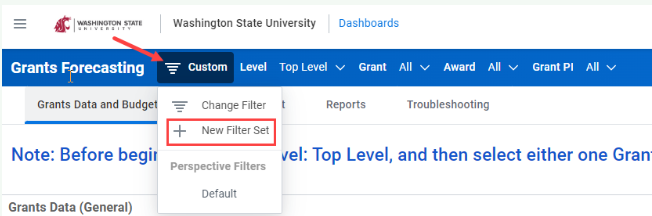
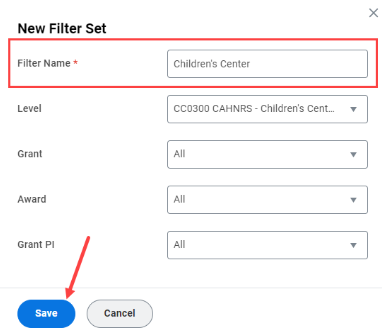
Personal Filter Sets allow users to save filters in order to quickly switch between commonly used filters. To add a new Personal Filter Set:
- From the Change Filter prompt in the top blue banner, select + New Filter Set.
- Enter a Filter Name, the desired filters, and then select Save.
Personal Scenarios
Personal Scenarios allow users to create personal grant forecast versions which are not visible to others. Each user may create up to 15 scenarios at a time, which are automatically updated if the plan version changes. If the maximum of 15 scenarios is reached, a scenario must be deleted before a new one can be created.
When a personal scenario is selected in the version picker, changes appear in green after saving, and are not visible to other users until it is merged with the base version.
To create a new Personal Scenario:
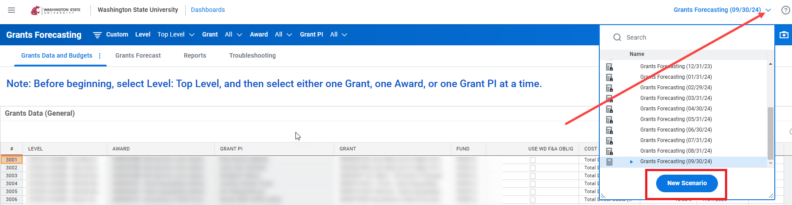
- Select the New Scenario button from the version picker in the top right corner.
- Enter a Scenario Name and select Create.
- To navigate to another existing scenario, use the version drop-down list located in the top right (select the blue arrow to the left of the current version if necessary).
Additional details on how to use these two features are included in the Workday Adaptive Grants Forecasting for Grant Administrators reference guide.
Questions? Please reach out at the Workday Service Desk.